If you’ve ever wished you could use Android apps and games on your PC, now’s your chance. If you’ve got an Android phone, all you need is the BlueStacks App Player to do the rest.
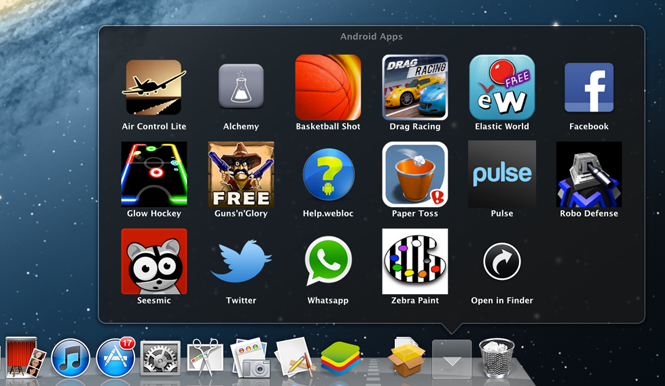
BlueStacks is a virtual machine that lets you run Android apps on your PC. Now you can enjoy apps like Talking Tom Cat, Words With Friends and even Facebook for Android directly on your desktop
Downloading and installing BlueStacks App Player is simple. As an added bonus, it comes with 10 apps already installed. BlueStacks also offers additional apps on its website that you can add to the App Player, and you don’t even need an Android phone to enjoy those specific ones on your desktop.
The questions is, how do you get apps from your Android phone into the App Player on your PC? Conveniently, BlueStacks offers a cloud service that will synchronize your phone directly to its App Player in a few easy steps.
1. Register an account online with BlueStacks
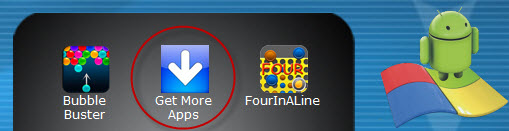
The first step is to click on the BlueStacks App Player itself, which should have appeared in the upper right corner on your desktop after installation. Scroll to the second page of pre-installed apps and click the “Get More Apps” icon.
.This will take you to the login page on BlueStacks’ website. You can either create email and password credentials or log into the site using your Facebook profile. If you go the email route, you’ll need to click a verification link sent to you by email before you can proceed.
2. Install BlueStacks Cloud Connect on your phone
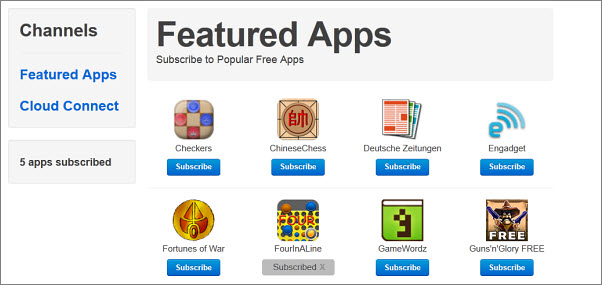
Once logged in, you’ll be shown a handful of apps that you can add directly from BlueStacks’ website. If any of these seem interesting, just click the Subscribe button and they’ll be transferred to your BlueStacks App Player automatically.
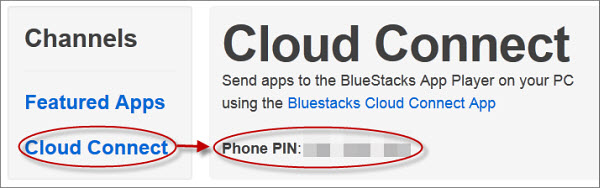
You’ll need to install the free BlueStacks Cloud Connect app onto your phone via the Android Market. Then return to the BlueStacks website and click the “Cloud Connect” link on the left of your screen. You’ll be given a unique PIN here that you can use to access the Cloud Connect app on your phone.
4. Sit back and wait for your apps to sync
Synchronizing between your phone and the BlueStacks App Player can take a couple minutes, so sit tight. Once synced, you’ll receive a message in your PC taskbar letting you know the apps synced. An image icon for each will appear in the actual App Player.
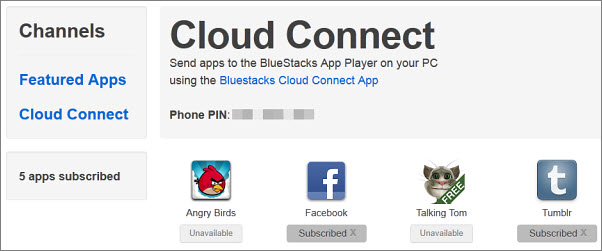
Since BlueStacks App Player is still in its alpha version, not all of your apps will be available for download yet. If some of the apps you tried to sync aren’t appearing, you can check on their status via BlueStacks’ website under the Cloud Connect option. If they were successfully transferred, a gray icon that says Subscribed will appear under their icon. If not, the icon will list them as Unavailable.
It’s likely that more apps will become available as BlueStacks App Player develops. The app is available for Windows and Mac, and there’s even a special version for Windows 8.
Have you ever tried BlueStacks? Did you manage to make it work?