So you’ve listened to the warnings and read the horror stories, but you’ve still come back for more. You must be a brave soul, because CCleaner‘s advanced options are pretty scary.
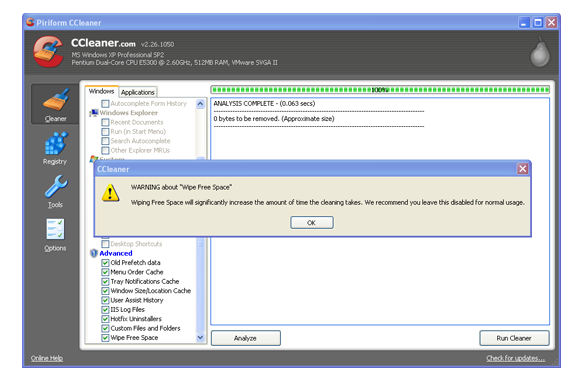
I’ll say it again, while CCleaner will positively shout it – don’t use the Advanced options unless you are very, very sure that you know what you are doing. These options are precisely the tools that could do some serious damage to your system if used wrongly. Bearing this in mind, let’s go through what some of these Advanced bits actually do.
Advanced
Old Prefetch Data – this is actually a controversial option. Pre-fetch files are basically parts of programs that Windows caches (‘pre-fetches’) so they are easily accessible when needed. Some people argue that over time the function becomes overcrowded, hence the need to delete. Others argue that Windows deletes them automatically, so there is no need. Nobody seems to be able to agree, so this one is completely in your own hands.
Menu Order Cache – this is where Windows stores information about the items that appear or have appeared in your Start menu. As CCleaner warns, any custom preferences will be reset, although nothing will actually be removed.
Tray Notifications Cache – again, where Windows stores information about the items that appear or have appeared in the Tray Menu. If you have any special set-up, it will be reset.
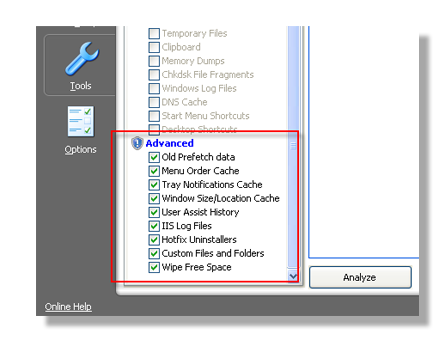
User Assist History – this will clear recently-used programs from the Start Menu. Clearing it accidentally can be irritating, but not fatal.
IIS Log Files – IIS stands for Internet Information Services. It’s a Microsoft service for Windows users’ internet services. Like many log files, theses are not something that the average user is very interested in, but they can be useful for bug fixing.
Hotfix Uninstallers – hotfixes are also known as patches. The uninstallers exist in case you install a patch that causes problems and you need to remove it. If you are confident that the hotfix they refer to is ok, there’s no real need for the uninstaller.
Wipe Free Space – for peace of mind. This feature is for anyone interested in security. When you delete files from your disk, much of the space they occupied retains data from those files but is effectively re-allocated as ‘free’ space. In other words, deleting a file doesn’t get rid of all its data, it just says ‘this space can now be considered free’. Wipe Free Space works by overwriting these areas of your disk, thus making it much harder to extract data about deleted files. It’s in Advanced, however, because it can take really long time to complete; some online accounts even point to 6 hours or more!
So what’s the final verdict? The first step is to make sure you know what an option does before you choose it. Secondly, only select the advanced options once you’ve decided to use them and then uncheck them when you’ve finished – don’t leave them ticked. The vast majority of the fixes only need to be performed once, and having them as the default option can slow your computer down and increase the risk of you erasing something you didn’t mean to.
Happy CCleaning!