How to: create a polaroid collage in Photoshop

By Elena Santos on 30 May, 2008

I remember doing collages at school, when I was a kid. I liked cropping pictures, letters and patterns, and then sticking them all on a poster board to create a truly original piece of art. But times have changed and technology has evolved, which means I've replaced scissors and glue with virtual cropping tools and layers. So today, instead of a paper composition, we're going to create a polaroid collage in Photoshop.

create a polaroid collage in Photoshop

1. First of all, open the image, duplicate the background layer, add a new layer between the background and its copy and fill it with black.
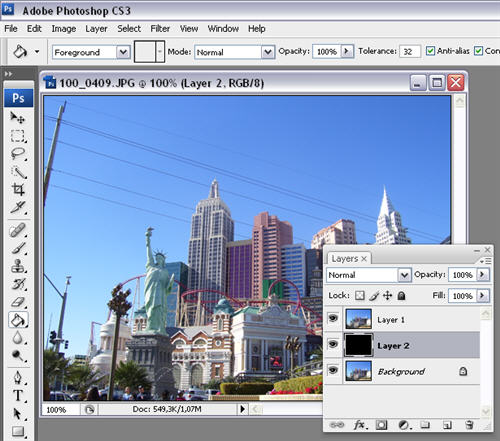
create a polaroid collage in Photoshop

2. Create a new layer on top of the black one and select what will be the content of your first polaroid with the Marquee tool (M). Fill in this selection with black too.
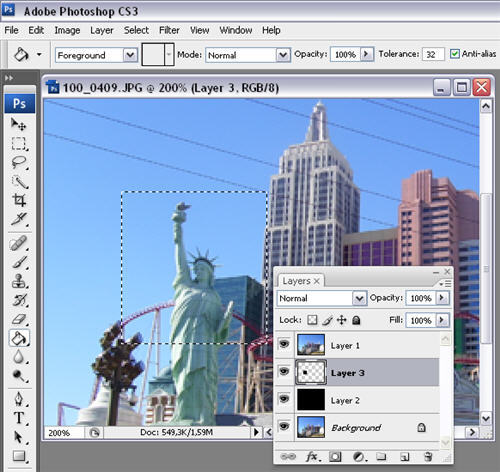
create a polaroid collage in Photoshop

3. Now we're going to create a clipping mask, so that the polaroid remains the only visible area of the original picture. Simply click on Layer 1 (the background copy) and go to Layer > Create Clipping Mask. You'll get something like this in your layer palette:
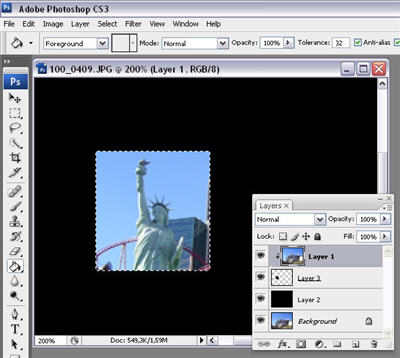
create a polaroid collage in Photoshop

4. Create a new layer on top of the black one and make a new selection around the previously selected area. This is going to be the polaroid's characteristic white margin, so fill it in with white.
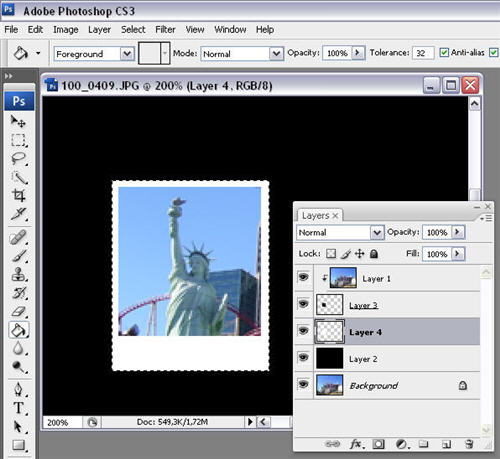
create a polaroid collage in Photoshop

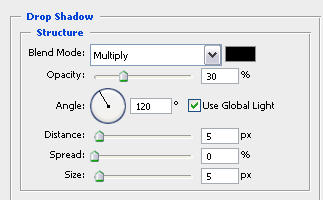
5. Add a Drop Shadow effect to this white border, tweaking the settings as shown:
create a polaroid collage in Photoshop

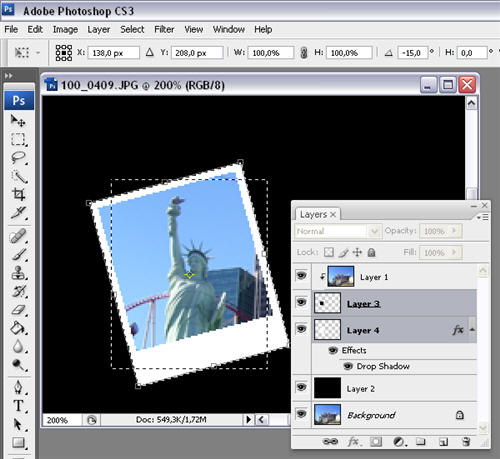
6. Select the two layers that make up the polaroid (content and margin) at the same time by clicking on them while holding the Shift key. Now use the Transformation tool (Ctrl+T) to rotate the photo. Press Enter when done.
create a polaroid collage in Photoshop

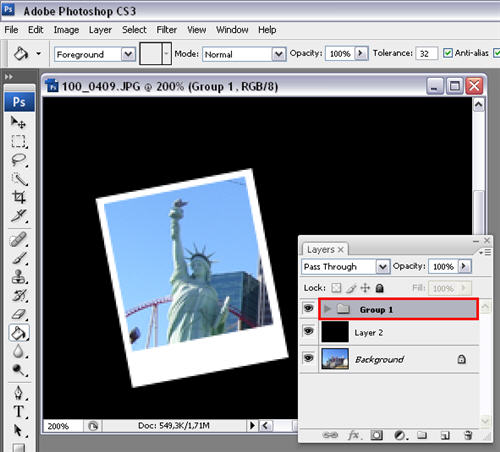
7. Now select all three layers (the two polaroid sections and the one with the clipping arrow) and press Ctrl+G. This will group them all in a separate folder, thus making layer management much easier.
create a polaroid collage in Photoshop

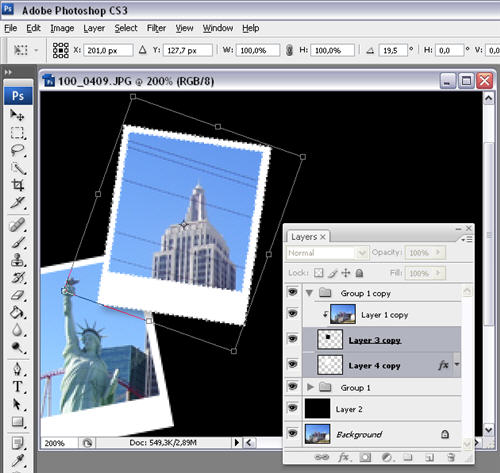
8. Each group of layers makes up a complete polaroid, so now it's time to duplicate them and obtain as many polaroids as you need to create the collage. Simply drag the group icon and drop it on the "New folder" button in the Layers palette to create a copy. Then select the two folders inside the group (the polaroid's content and margin) and apply a transformation like in step 5.
create a polaroid collage in Photoshop

9. Simply keep on duplicating the layer group and repeating the fifth step until you have enough polaroids to show your original image in a nice collage.
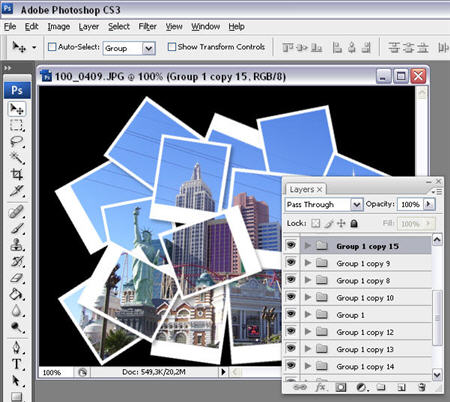
create a polaroid collage in Photoshop


10. Here's my final result, after creating 15 copies, flattening the image and adding some final shadows.

create a polaroid collage in Photoshop

Comments

  • George George

    Dear Elena, I am writing again to compliment you on this series of 'How To'in Photoshop. The step by step format using screenshots simplifies the project and makes the student aware of how to use tools from the emense armoury in photoshop, many that we didn't know were there. I was looking recently for a 'How to - Create a Resumé',without success. It made me think that your same format would enable a student that had no prior understanding of Microsoft Office Word, to navigate through Tables and Fonts, to produce their own C.V.( with/without photograph) If you decide to go with the idea please let me know. Yours Faithfully George Comerford

    • Sent on 31 May 2008
  • Elena Santos Elena Santos

    Hi George! Thanks for your kind comments :) The thing is, I'm focused on developing step-by-step tutorials only for Photoshop at the moment, mainly because of the popularity of digital photography and the fact that this editor is quite difficult to use for novice users. In any case thanks for your suggestion, we'll take that into account. Cheers, Elena

    • Sent on 02 Jun 2008
  • aimee aimee

    i cannot multiple select? ive tried control click. ive tried shift-click. it will not work!?!? help please?

    • Sent on 20 Aug 2008
  • Elena Santos Elena Santos

    Hi Aimee, Multiple selection is only available from Photoshop CS3 onwards. If your copy of Photoshop is older than CS3 you won't be able to make multiple selections. Cheers, Elena

    • Sent on 20 Aug 2008
  • Sarah Sarah

    Hi Elena, When you started out, you selected only the statue of liberty portion. How did you get the collage to extend to the other parts of the picture? (i.e. the buildings, etc)? When i duplicate the folder and create a new transformation, it just adds a new collage for the little segment i created (in your case, the area of the statue of liberty). I want to do that for the entire picture. How do i do that? Thanks so much. Sarah

    • Sent on 17 Sep 2008
  • Elena Santos Elena Santos

    Hi Sarah, first of all, make sure you create the clipping mask on the appropriate layer (step 3) so that you get a masking effect. Then, once you've grouped the Polaroid layers, duplicate the whole group as explained on step 8. Click on the new group you just created to open it, and select the two polaroid sections simultaneously (Ctrl+click on both on them). Press V to activate the Move tool and you'll be able to drag the new polaroid all around the picture, showing only the area beneath. In this way you can arrange multiple polaroids on the picture, each one of them showing a different area and eventually creating the collage. Hope I made myself clear :) Cheers, Elena

    • Sent on 18 Sep 2008
  • e93 e93

    Thanks a Lot!

    • Sent on 18 Sep 2008
  • How to: create a polaroid collage in Photoshop - OnSoftware | tutorialtown.com How to: creat<br />e a polaroid

    [...] How to: create a polaroid collage in Photoshop - OnSoftware Dear Elena, I am writing again to compliment you on this series of ‘How To’in Photoshop. The step by step format using screenshots simplifies … [...]

    • Sent on 16 Nov 2008
  • Mikado Mikado

    Hi first of all thanks for the tutorials. its greate. I seem to be having problems with step 3 the Create Clipping Mask option is grayed out for me. is there a reason for that? am i doing something wrong?

    • Sent on 10 Jan 2009
  • Elena Santos Elena Santos

    Hi Mikado, I can't think of any reason... make sure you have the right layer selected (background copy) and that you did all previous steps correctly. I'm sorry I can't help you any further. Cheers!

    • Sent on 12 Jan 2009
  • zaneta zaneta

    thankss for the tutorial, Elena :))

    • Sent on 21 Jul 2009
  • Anna Anna

    Well, I can say that this really worked a lot for me. I am currently working on a forum and this helped a lot. Idid not knew that I could do that there. Ha! I will be majoring in Graphic Design and well, every say with photoshop you learn something new. I must say you do an excellent job describing the steps. I did this under 5 minutes!Whoa! How awesome is that? Thank for taking your time and putting up tutorials. I think you are very good at them. You should teach at a school, if you are not teaching at one! Thanks, Anna

    • Sent on 01 Aug 2009
  • miguel miguel

    With me was very helpful thank you very much ...!

    • Sent on 18 Oct 2009
  • PhotoShop ( advice / crits / showoff / request ) Thread - Page 133 - Project Reality Forums PhotoShop ( a<br />dvice / crit

    [...] advice / crits / showoff / request ) Thread Had a go at that style, quite pleased with it How to: create a polaroid collage in Photoshop | OnSoftware that is a good simple [...]

    • Sent on 12 Feb 2010
  • LuLuMa LuLuMa

    Hi, and thanks for the tutorial, it's great and very useful... But I couldn't make the black layer disappear and i'd like to...

    • Sent on 18 Jun 2010
  • Vikram Vikram

    Wonderful tutorial. I am pretty weak in designing but it always fascinates me and I try doing things in my free time. With this tutorial I was able to create an awesome collage. Thanks a bunch.

    • Sent on 21 Nov 2010
  • Comment

Softonic on Facebook