We’ve done lots of Photoshop tutorials on OnSoftware, but most of them are photo effects. That’s why I thought it was the right time to write a tutorial about a nice text effect, like this one I used some time ago to create a greeting card for a friend. The idea is to place an image inside a word – or a sentence – so that it shows up through the letters. It’s easy and looks great!
1. First of all, open the image you want to use and duplicate the main layer.
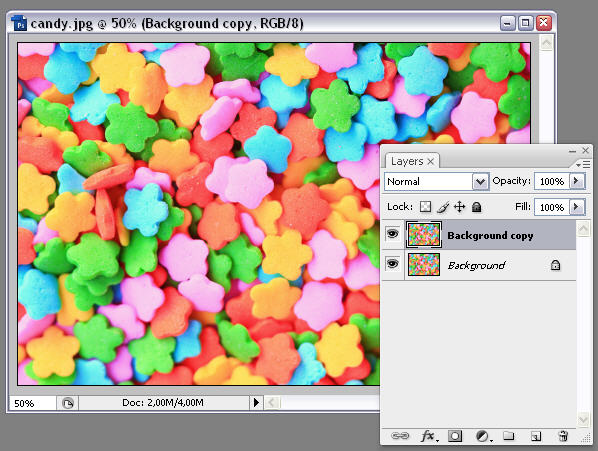
2. Then create a new layer, fill it with white and place it between the other two layers.
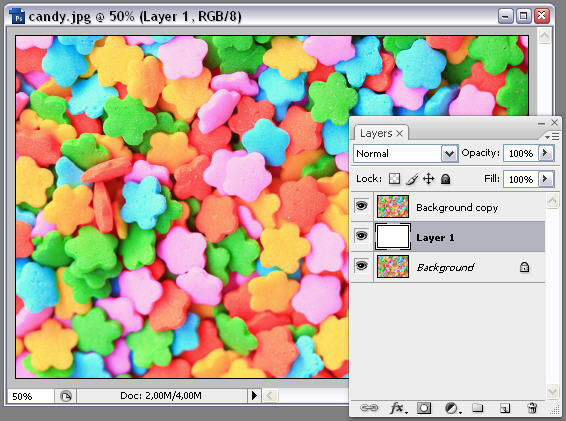
3. Select the top layer again, grab the Text (T) tool and make sure white is selected as your foreground color. Then write the text you want to use.
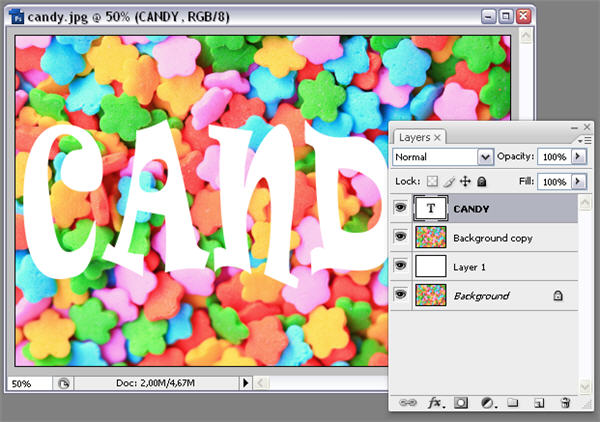
4. Move the text layer one level down, so it stays below the background copy layer.
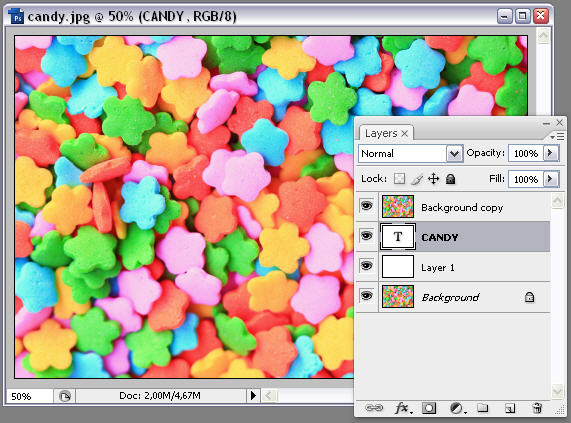
5. Now select that background copy layer, and go to Layer > Create clipping mask. Voilà! Your text is visible again, and it already has the image inside.
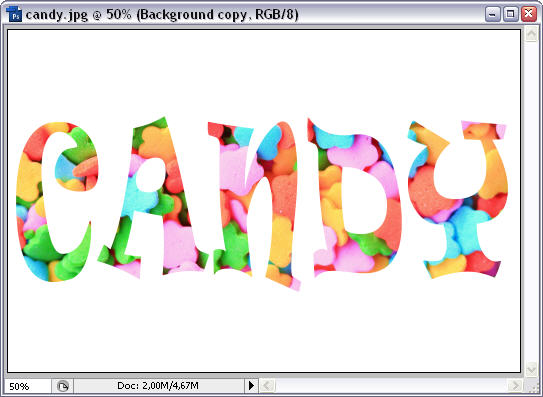
6. If you want to add any extra effects, such as shadow or stroke, make sure the text layer is the active one and be creative!