Seven ways to save battery life on an Android phone

By James Thornton on 16 August, 2010

The Nexus One, HTC Desire and HTC Legend are all great Android phones, but they are all blighted by the same problem: a woefully short battery life.

The most disappointing discovery you'll make when you first get one of these phones is that it barely has enough juice to make it until the end of the first day. From here on in, your daily routine will involve ensuring your phone goes on charge when you go to bed. Of course, this isn't such a bad pay-off considering the quality of these devices, but there will be days when you won't be able to charge it.

Here are seven ways to save battery on an Android phone that can be very effective. I've tried to include the main ones, although it's also worth checking out the handy power-saving tips on TechCredo, Mr.Gadget, and also on the Help section of the Nexus One forums.

Monitor your battery use

A good place to start is by checking which apps, tasks and processes are killing your battery. You can do this using the built-in Battery use feature of Android (Settings > About Phone > Battery > Battery Use). Once you've identified where the leak is coming from you can kill the apps or processes (as long as their not needed) using a program such as TasKiller or Advanced Task Killer.

Beware when using third-party battery management apps, such as JuiceDefender or Power Manager. These tools can effectively identify where power is being used, but leave them running and you'll discover that these programs can actually be a real drain on battery life themselves.
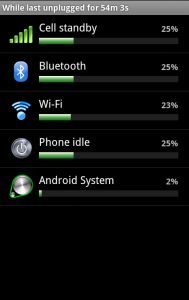
Monitor use

Disable Always-On Mobile Data

Your phone generally doesn't always have to be connected to the internet, so having the data connection 'always on', isn't necessary. You can save battery by turning it off from Settings> Wireless & networks > Mobile networks > Enable always-on mobile data. Note, that turning this off shouldn't interfere with you receiving push Gmail notifications or even with using Google Talk.
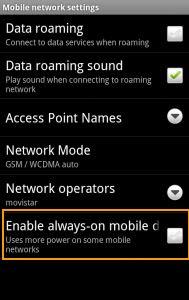
Always-on

Turn off WiFi & Bluetooth

WiFi and Bluetooth are two classic battery-suckers. Most of the time you won't be using either of them, so make sure both are switched off when not needed. Both can be deactivated from Settings > Wireless & networks.
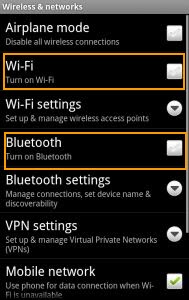
Bluetooth

Turn down screen brightness

Many newer incarnations of Android include a setting to automatically adjust the screen's brightness to save battery. Ensure this is activated from Settings > Sound & display > Brightness. Alternatively, you can manually lower the constant brightness of your screen. Aim for the lowest brightness increment you can before it becomes uncomfortable.
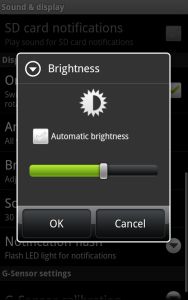
Brightness

Change the screen timeout period

Having the screen timeout period set at more than one minute can really take it out of your phone's battery. Reduce this period to around 30 seconds and you'll save precious energy. The time period can be defined in Settings > Screen & display > Screen timeout.
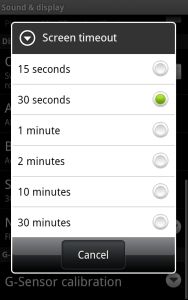
Screen timeout

Search with Black Google Mobile

If you use Google a lot on your phone then here's one to bookmark in your browser: Black Google Mobile. Use this dark version of google and you'll save battery and bandwidth on your mobile phone. The black background requires less power to display than Google's traditional white search engine. See page 15 of this document for more on the science behind this.
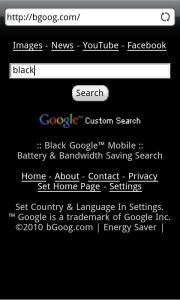
Black

Limit the use of certain apps

Google co-founder Larry Page has blamed apps for the poor battery performance of Android phones. It's a harsh reality that certain kinds of Android software are very resource-hungry. Where possible, try limiting your use of location-aware apps (e.g. Google Maps, FourSquare) or streaming apps (e.g., YouTube, Last.fm). You should also avoid live wallpapers. They might look pretty, but they will soon suck your cell dry.

Cut the apps

Comments

  • Matt Perkins Matt Perkins

    Another good free app for saving power is Y5 - Battery Saver and using either MySettings or Toggle Settings to turn off things you don't use as well as lower the brightness to 25% of the maximum brightness. Y5 choses WiFi and turns off 3G when WiFi is available saving battery. A good way to save battery and enhance performance is to go to settings and make your Android phone only use 3G rather than have it go back and forth between 3G and 2G. Also have your battery profile set to enhance performance. As for task killers. If you have the time and know what your doing you can set Advanced Task Killer Auto Kill Level to "Crazy" and Security Level to "Low". Then set Advanced Task Killer to "Kill Tasks When Screen Is Off". This means when you don't use your phone it will keep tasks killed for you. I'd recommend turning the screen off the moment u your not using it. However if you go this route then you want to make sure you "ignore list" all apps you need running at all times. Like Meebo, Handcent SMS, K-9 or any other service or app you need running 24/7. Also know what Android services you need running at all times or risk your Android phone from freezing up. If you do things as I suggested with Y5, Customize settings, adjust your batty profile and adjust Advanced Task Manager then you could get close to doubling your battery life while enhancing performance as well. I myself almost tripled mine going from 4 hours to almost 12 hours.

    • Sent on 16 Aug 2010
  • Matt Perkins Matt Perkins

    FYI I set my screen to never time out. It's rather pointless. If your using your phone then you don't want it to time out on you. It's much easier and saves more battery to follow my suggestions and turn off the screen when your not using it and let Advanced Task Killer do it's job. And as I said in my above post I saved a lot of batter keeping Handcent SMS on the "ignore list" so it doesn't effect your battery as much as you may assume. It's just better to kill the apps you don't need at all times. Like Dolphin Browser. Than it is to kill apps like Handcent SMS which you may need to always work for you. I have found all this out through trial and error. Also on another note Dr.Web has released a free AntiVirus app for Android that offers both a scanner and protection. It's the first major AntiVirus solution for Android.

    • Sent on 16 Aug 2010
  • How to save battery life on an Android phone &#8211; OnSoftware | How To Use Android How to save b<br />attery life

    [...] How to save battery life on an Android phoneOnSoftwareThe Nexus One, HTC Desire and HTC Legend are all great Android phones, but they are all blighted by the same problem: a woefully short battery life. …HTC Sense Tips & TricksAndroinica (blog)all 5 news articles » [...]

    • Sent on 16 Aug 2010
  • Matt Perkins Matt Perkins

    The only reasons Android phones consume a lot of battery is people have a ton of apps and never "kill" them so they suck up battery. Two other things that help drain battery in Android phones are leaving the screen brightness set too high and not turning off features users don't use. For instance if your in a place that has WiFi then you don't need both WiFi and 3G turned on. Using an app like Y5 turns WiFi on and 3G off where WiFi is available then turns off WiFi and turns on 3G when WiFi isn't available. While an app like MySettings enables you easily to turn on features when you need them, then easily turn them off when your done. If you "kill" tasks you don't use the moment your done with them. Turn down the brightness of the Android phone to 25% and Turn off features you don't use then your battery life increases.

    • Sent on 16 Aug 2010
  • Case-Mate Tough Case for HTC Google Nexus One &#8211; Everything Android &#8211; Nexus One Central | Apps, Downloads, Forums, News and Updates Case-Mate Tou<br />gh Case for

    [...] Case Giveaway #1Everything AndroidHTC (USA) Now Selling Nexus One Phone Accessorieswwwery (blog)How to save battery life on an Android phoneOnSoftwareAndroinica (blog)all 6 news articles » VN:F [1.8.0_1031]please [...]

    • Sent on 17 Aug 2010
  • myBCtech myBCtech

    Use Remove Background SBSettings Toggle To Quickly Free Up Available Memory On Your iPhone I found your entry interesting thus I've added a Trackback to it on my weblog :)

    • Sent on 18 Aug 2010
  • Researchers Prove That Alpha Numeric Pins Will Always Be More Secure Than &#8230; &#8211; ZoKnowsGaming | How To Use Android Researchers P<br />rove That Al

    [...] with a password you can set until the latest Froyo 2.2. update, that added support for alpha …How to save battery life on an Android phoneOnSoftwareHTC Sense Tips & TricksAndroinica (blog)all 9 news [...]

    • Sent on 18 Aug 2010
  • Matt Perkins Matt Perkins

    You guys seriously need to stop spamming your website here. It's not Softonic's fault your site doesn't get visitors nor is it their job to supply you with visitors. And the more you mention your site, the less likely someone will go to it. Do Softonic readers a favor and stop spamming. No one wants to read you guys spam. Thx.

    • Sent on 18 Aug 2010
  • HTC selling Google Nexus One accessories &#8211; IntoMobile (blog) &#8211; Nexus One Central | Apps, Downloads, Forums, News and Updates HTC selling G<br />oogle Nexus

    [...] Now Selling Nexus One Phone Accessorieswwwery (blog)ZoKnowsGaming -Headlines News (blog) -OnSoftwareall 9 news articles » VN:F [1.8.0_1031]please wait...Rating: 0.0/10 (0 votes cast)VN:F [...]

    • Sent on 19 Aug 2010
  • Seven ways to save battery life on an Android phone | OnSoftware | Y5 game Seven ways to<br /> save batter

    [...] Seven ways to save battery life on an Android phone | OnSoftware Comments [...]

    • Sent on 19 Aug 2010
  • Adam Adam

    Umm.. that black google mobile suggestion is ONLY the case with OLED and absolutely NEVER the case with a standard LCD. A normal LCD ALWAYS takes MORE power to display black. Think about it, there is a white back-light on it, white doesn't take any power to display. In order to hide the black, all 3 color pixels have to be active, so it takes the most power.

    • Sent on 31 Aug 2010
  • Frank Frank

    Sorry Adam but LCD's do not ALWAYS take more power displaying black. LCD screens that are LED backlit save power displaying black instead of white and have different power characteristics than some older LCD's... Many LCD's have very small differences when showing black or white, both positive and negative. From studies I have seen, any LCD's that use more power displaying black have pretty negligible differences. And then there's also CRT's and Plasma screens which also definitely save power displaying black.

    • Sent on 02 Sep 2010
  • Faisal Faisal

    i

    • Sent on 22 Dec 2010
  • SRI DEEPAK SRI DEEPAK

    After using all applications we must check whether all the apps are closed properly.keep your display brightness as 1% and back light as 15sec.don't put your mobile in charge for long and night time,,,,,,,,.

    • Sent on 12 Mar 2011
  • doesnt matter doesnt matter

    lol how about stop using your phone like a computer and maybe it wont die out so fast ?

    • Sent on 04 Aug 2011
  • Comment

Softonic on Facebook